A media player can be in one of two different states. Ideally it should be reporting STATUS OK in which case it is connected to the server, has all the files it needs and is running without any problems.
If it is not reporting OK, there are five conditions that could be causing the problem, some of which you may be able to resolve yourself (see below). If you have tried this first line resolution but the player remains unresponsive, please lodge a ticket with our service desk.
You can find a list of all players that require some kind of assistance on the Dashboard (click Support / Dashboard). Those that are operating properly do not appear here.
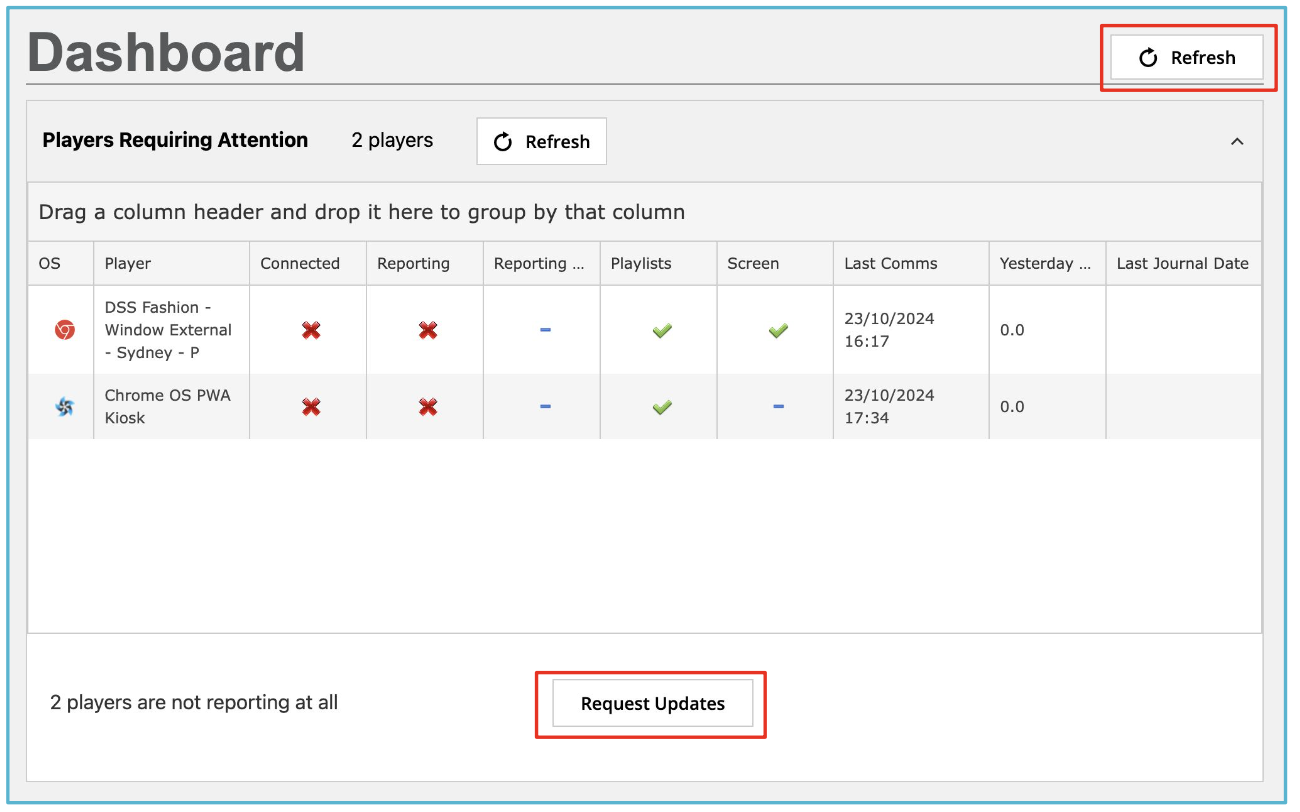
The table shows various conditions against
which there is a marker.
- Connected – The player is connected to the server
- Reporting – The player is reporting back to the server
- Reporting Content – At time of last report, the player had all the media files it needs and was playing the files
- Playlists – At time of last report, the player was running the correct playlists
- Screen – At time of last report, screen control (if installed) was working correctly
The marker
means:
- A red cross advises that an issue exists in that field.
- A green tick advises that, at last communication, the field was correct.
- A blue dash/line means the field is not applicable or the status is not possible to determine currently.
The REFRESH button updates the Dashboard. The REQUEST UPDATES button will attempt to send a message to each player, requesting that it updates status.
PLAYER PAGE
If you click on the name of any player, you’ll be taken to its home page where you’ll find more information. Here you can also Request an Update or Restart the Player. In many cases, this resolves the problem.
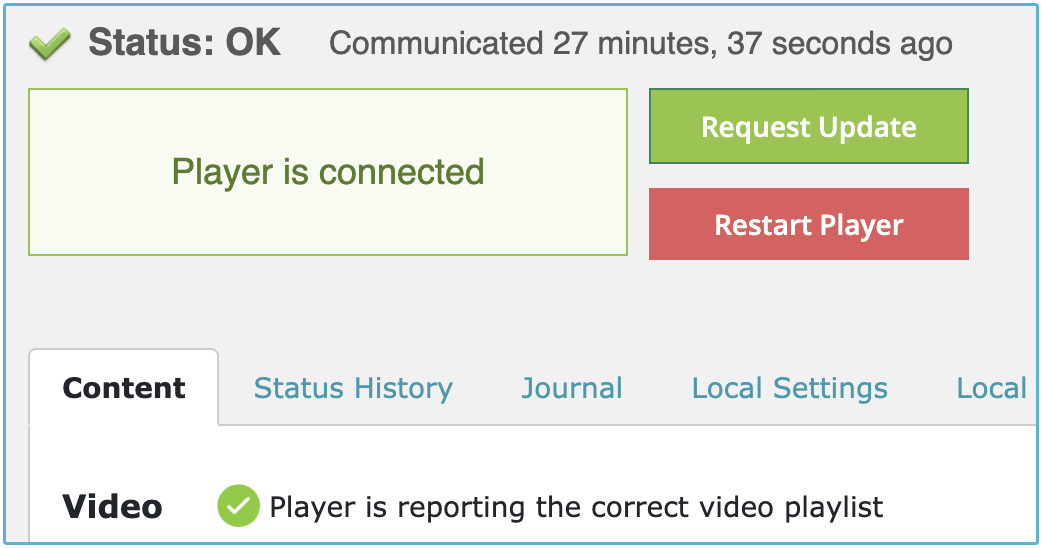
Status: OK
Player is Connected
This is how a player should look when it is running properly. It is connected to the server and able to receive updates, new instructions and new content.
Note that a player does not need to be connected in order to play content. When it is offline, it will continue to perform the last set of instructions it received until such time as it runs out of valid content to play. At this point, your failsafe playlist will take over.
COMMON ERROR MESSAGES
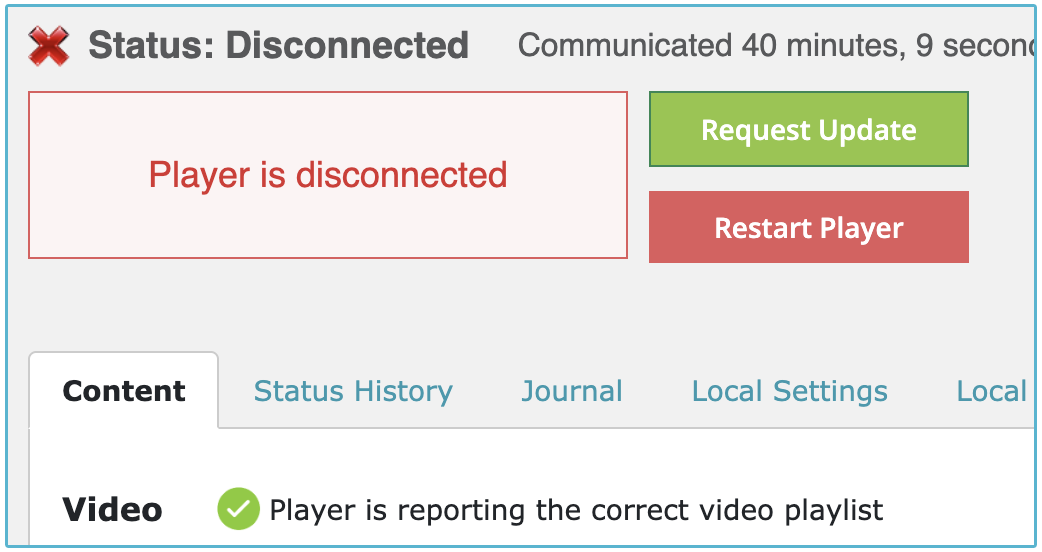
Status: Disconnected
Player is Disconnected
The player has lost connection to the server. While it will continue to play the last set of instructions it received, it won’t receive any new updates or files while it is offline.
First Aid: Check player is turned on, and try power cycling. Check all cables are connected, and the internet connection is working.
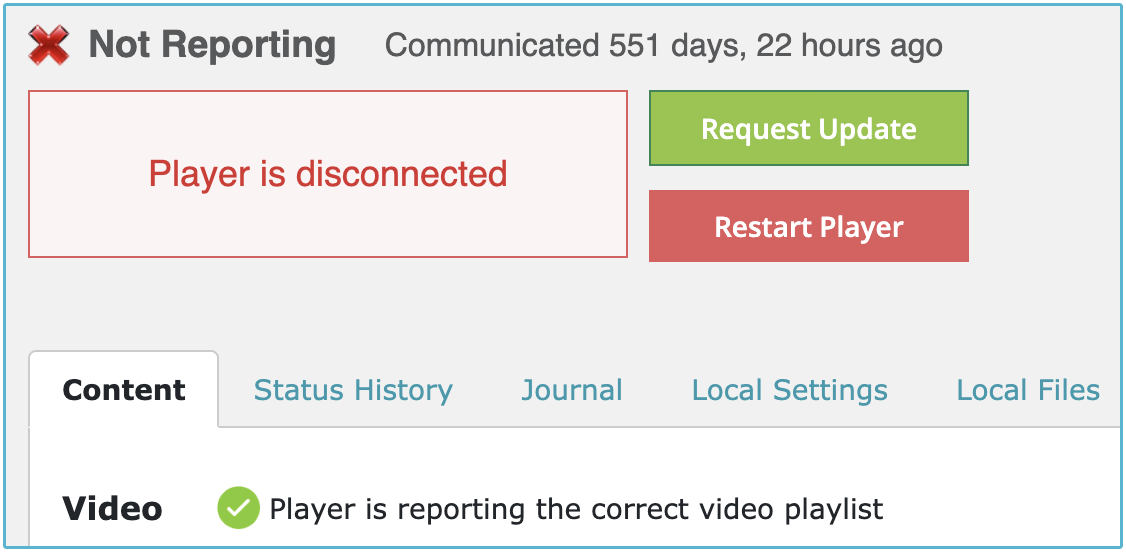
Status: Not Reporting
Player is not reporting any data to the server
The player may or may not have a connection to the server but it is failing to report its status to the server.
First Aid: Check player is turned on, and try power cycling. Check all cables are connected, and the internet connection is working.
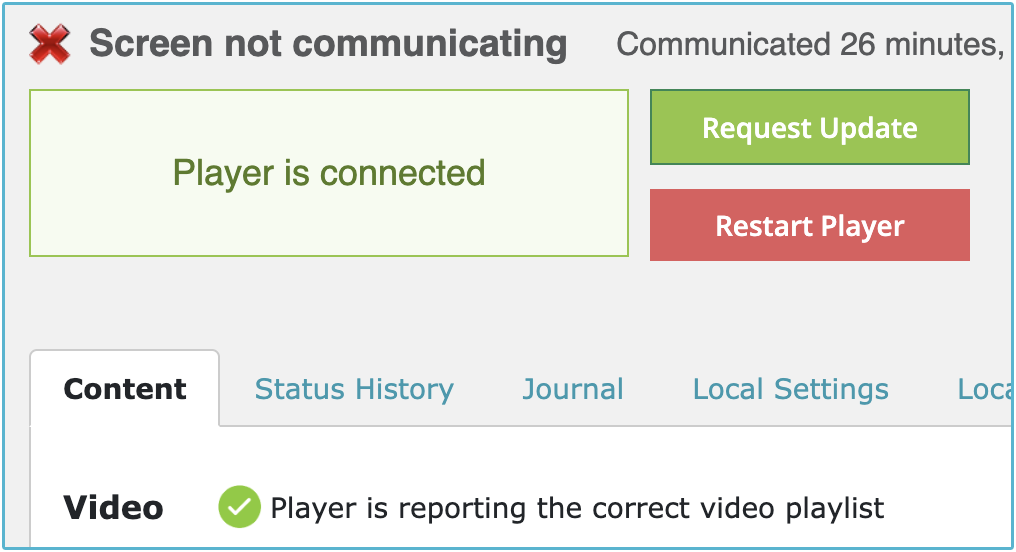
Status: Screen Not Communicating
Player is connected to server but not to screen
The player has protocols which allow it to control the screen (turn it on or off etc). This error means that while the player is operating properly, there is a problem communicating with the screen itself.
First Aid: Check the screen is turned on and check that HDMI and control cables from the player are connected to the screen properly.
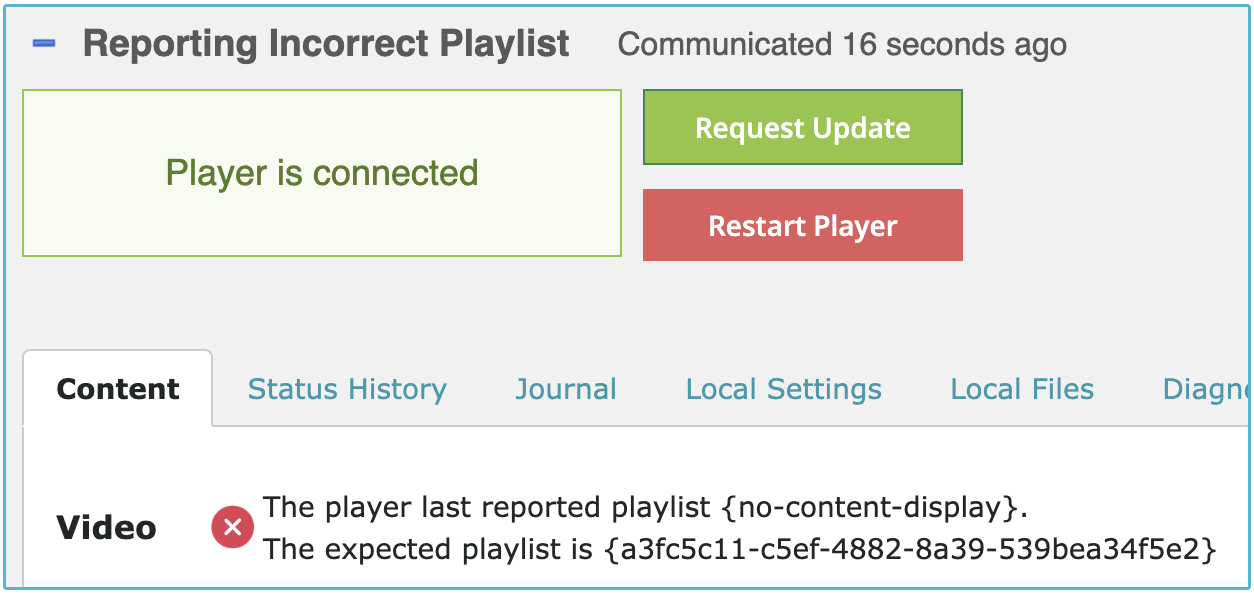
Reporting: Reporting Incorrect Playlist
Player is connected but reporting the wrong playlist
There’s a mismatch between the playlist it should be using, and the playlist it reports as using. This typically happens when an update has just occurred, and the CMS needs to update the change.
First Aid: Wait a short period of time for the reporting system to align itself. If it doesn’t, go to the player’s Diagnostics Tools tab and click FORCE PLAYER FILE CHECK button. If that doesn’t work, return to the player’s main page and click the REQUEST UPDATE button. If the problem continues, click RESTART PLAYER.